How to Download Long Time Series DWD Data Directly via URL
While the DWD Explorer dashboard provides a powerful interface for visualizing Germany’s high-resolution meteorological data, there are times when you need the raw files in bulk. Whether you are conducting large-scale climate modeling or need an uninterrupted century-long daily temperature record for a specific city, downloading the data directly is the most efficient approach.
The Deutscher Wetterdienst (DWD) hosts its OpenData archive on a structured, predictable HTTP file server. By understanding this structure, you can bypass intermediate tools and manually build direct download URLs.
In this guide, we will walk through the directory logic of the DWD server and show you how to fetch both historical and recent data to create long time series, using monthly air temperature data for Berlin as our example.
The DWD OpenData Directory Base
All German climate observation data is hosted at a single base URL: https://opendata.dwd.de/climate_environment/CDC/observations_germany/climate/
From this base, the directories follow a strict hierarchical logic: [resolution] / [parameter] / [historical or recent] /
- Resolution: The temporal granularity of the data. For monthly data, this directory is
monthly. - Parameter: The specific meteorological variable. For basic monthly climate data (which includes air temperature), we use
kl(Klima). - Historical vs. Recent:
historical/: Contains quality-controlled, finalized records. These files typically cover the start of the station’s measurement history up until December 31st of the previous year.recent/: Contains provisional data covering roughly the last 500 days, up to the present moment.
Naming Conventions for URLs
Because the DWD filenames use German-based abbreviations, you must map the English parameter names to their German counterparts to construct a working URL. The English parameter names corresponding to these codes can be obtained from the DWD User Guide page.
1. File Prefixes by Resolution
The resolution of the data determines the first part of the filename:
| Resolution | Filename Prefix |
|---|---|
| 10 Minutes | 10minutenwerte |
| Hourly | stundenwerte |
| Daily | tageswerte |
| Monthly | monatswerte |
2. Common Parameter Abbreviations
The DWD uses short symbols for each meteorological variable. The most common ones available in the DWD Explorer:
| English Name | DWD Code |
|---|---|
| Air Temperature | TU |
| Precipitation | RR |
| Wind Speed/Direction | FF |
| Solar Radiation | ST |
| Bundled Climate Record | KL |
Step 1: Finding Your Station ID and Parameter
To construct a direct URL, you need to know the Station ID and the exact Parameter Code.
The simplest way to find this information is by using the Climate Explorer tools.
- Station ID: A unique 5-digit number identifying the weather station. You can find the Station ID in the Stations Info tab within the DWD Explorer dashboard. Simply search for your city name in the table.
- Example: For Berlin-Tempelhof, the Station ID is
00433.
- Example: For Berlin-Tempelhof, the Station ID is
- Parameter Code: A short abbreviation used in the file name itself. The parameter codes are listed in the DWD Explorer User Guide.
- Example: The bundled monthly climate dataset is referred to as
kl, but in the filename, it is often capitalized asKL.
- Example: The bundled monthly climate dataset is referred to as
Step 2: Manually Constructing the URL
DWD zip files follow a highly specific naming convention. We will manually construct the URLs piece by piece for Berlin-Tempelhof (00433).
1. Constructing the Recent Data URL
Recent data files always end with the static suffix _akt.zip (aktuell / current). The formula for the file name is: monatswerte_[PARAMETER]_[STATION_ID]_akt.zip
For Berlin-Tempelhof: * Prefix: monatswerte_KL_ * Station ID: 00433 * Suffix: _akt.zip * Filename: monatswerte_KL_00433_akt.zip
Now, append this to the directory path (.../monthly/kl/recent/):
Your Constructed Recent URL: https://opendata.dwd.de/climate_environment/CDC/observations_germany/climate/monthly/kl/recent/monatswerte_KL_00433_akt.zip
(You can paste this exact URL into your browser to immediately download the ZIP file containing the last 500 days of monthly air temperature and climate data for Berlin).
2. Constructing the Historical Data URL
Historical files are slightly more complex because the file name includes the exact start and end dates (YYYYMMDD) of the dataset.
The formula is: monatswerte_[PARAMETER]_[STATION_ID]_[START_DATE]_[END_DATE]_hist.zip
Since Berlin-Tempelhof has an extremely long history, its dataset ranges from the start of its consistent modern recording period in 1938 up to the end of last year.
- Filename pattern:
monatswerte_KL_00433_19380101_20241231_hist.zip
How to Find the Exact Start/End Dates:
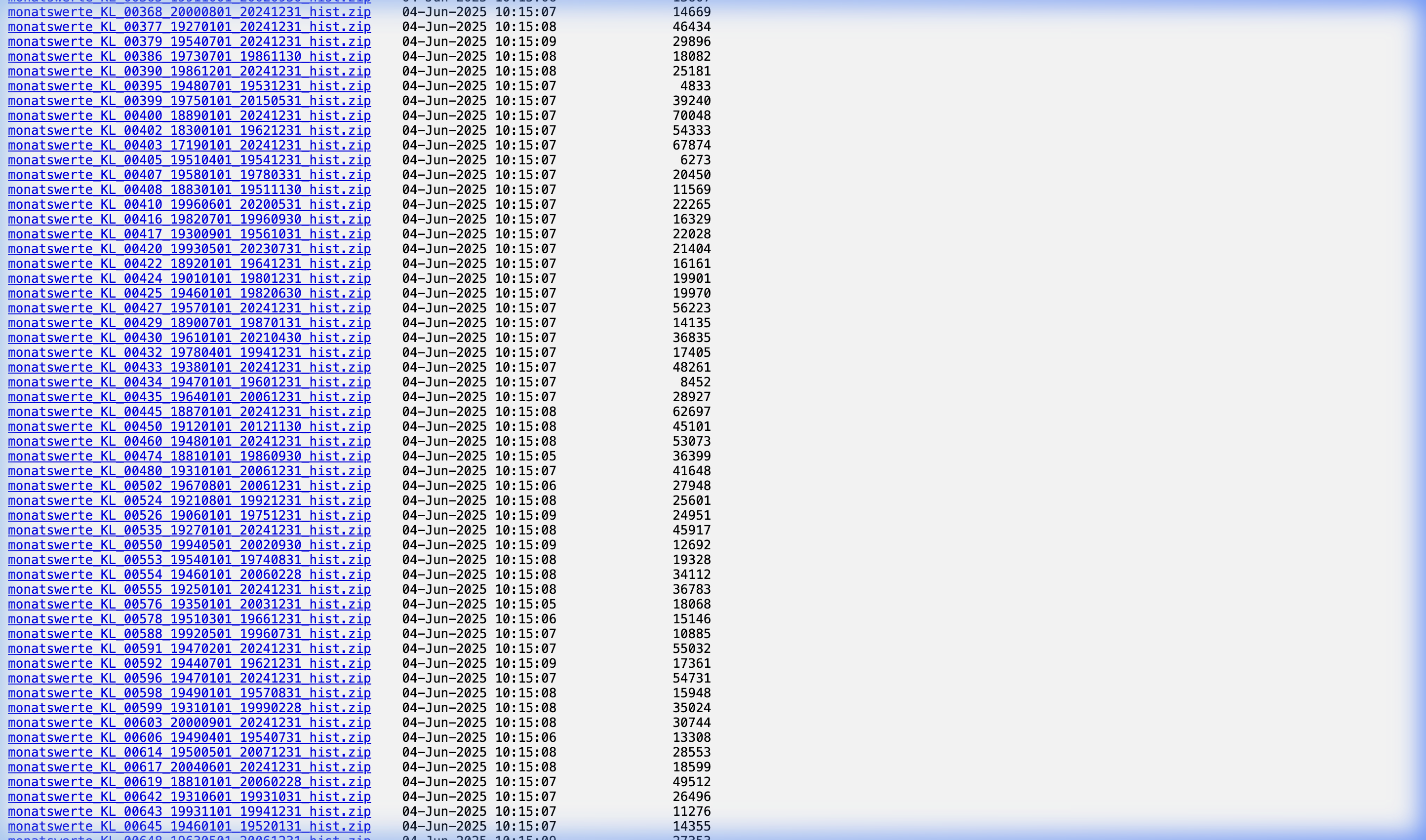
If you try to guess the dates in the file name, you will likely get a “404 Not Found” error. The exact start and end dates vary wildly between stations. To find the exact file name: 1. Open your browser and navigate to the historical/ directory for your chosen parameter. (e.g., .../monthly/kl/historical/). 2. Press Ctrl+F (or Cmd+F on Mac) and search for your 5-digit Station ID (e.g., 00433). 3. Right-click the exact .zip file that matches your search and select “Copy Link Address”.
Your Constructed Historical URL: https://opendata.dwd.de/climate_environment/CDC/observations_germany/climate/monthly/kl/historical/monatswerte_KL_00433_19380101_20241231_hist.zip
Step 3: Stitching Together the Long Time Series
If you want a complete, uninterrupted monthly climate record for Berlin-Tempelhof from 1938 to the latest available month, you will use both files:
- Download the Historical File: Paste the historical URL into your browser, download the zip, and extract the internal
.txtdata file. This gives you the long quality-controlled portion of the record through the end of 2024. - Download the Recent File: Paste the recent URL into your browser, download the zip, and extract its data file. This covers the most recent months not yet included in the historical archive.
- Merge the Text Files: Open both
.txtfiles in Excel, Python, or R. Combine the rows, and simply delete any duplicate rows over the overlapping period.
By manually constructing these two URLs, you bypass any intermediate applications and obtain the full Berlin-Tempelhof monthly record available on the DWD OpenData server, straight from the source. For a faster visual overview before downloading, always remember to check the Climate Explorer.